1Sign in and install on your phone
- Go to device.logmor.com and choose Create an account. We email you a link to verify your address before your first sign-in.
- Forgot your password? Choose Forgot password? on the sign-in page and we'll email you a reset link.
- Install it like an app (optional). On Android, tap Install when the portal offers it. On iPhone or iPad, open the portal in Safari, tap the Share button, then Add to Home Screen. There's nothing to download from an app store.
2Activate an outlet
- 1
Power it on
Plug the outlet into a grounded 120V wall receptacle and wait for the light to breathe cyan. That means it's online and ready.
- 2
Open Activate Device
Choose Activate Device in the menu. Type the 24-character device ID printed next to the QR code on the back of the outlet, or tap the camera button to scan the QR code.
- 3
Name it
Give it a name you'll recognize, such as Cabin Router, and optionally a location. You can change both later.
- 4
Confirm billing and activate
A payment method is required. The page shows when your next invoice is due. Agree to the terms and choose Activate Device, then Open device.
Light not cyan, or the ID isn't accepted? See the setup guide or email support@logmor.com.
3Your devices
Devices lists every active outlet with its status. Search by name, location or device ID, filter by Online or Offline, and choose Refresh for the latest status. Select an outlet to open its page.
4Turn it on, off or power cycle
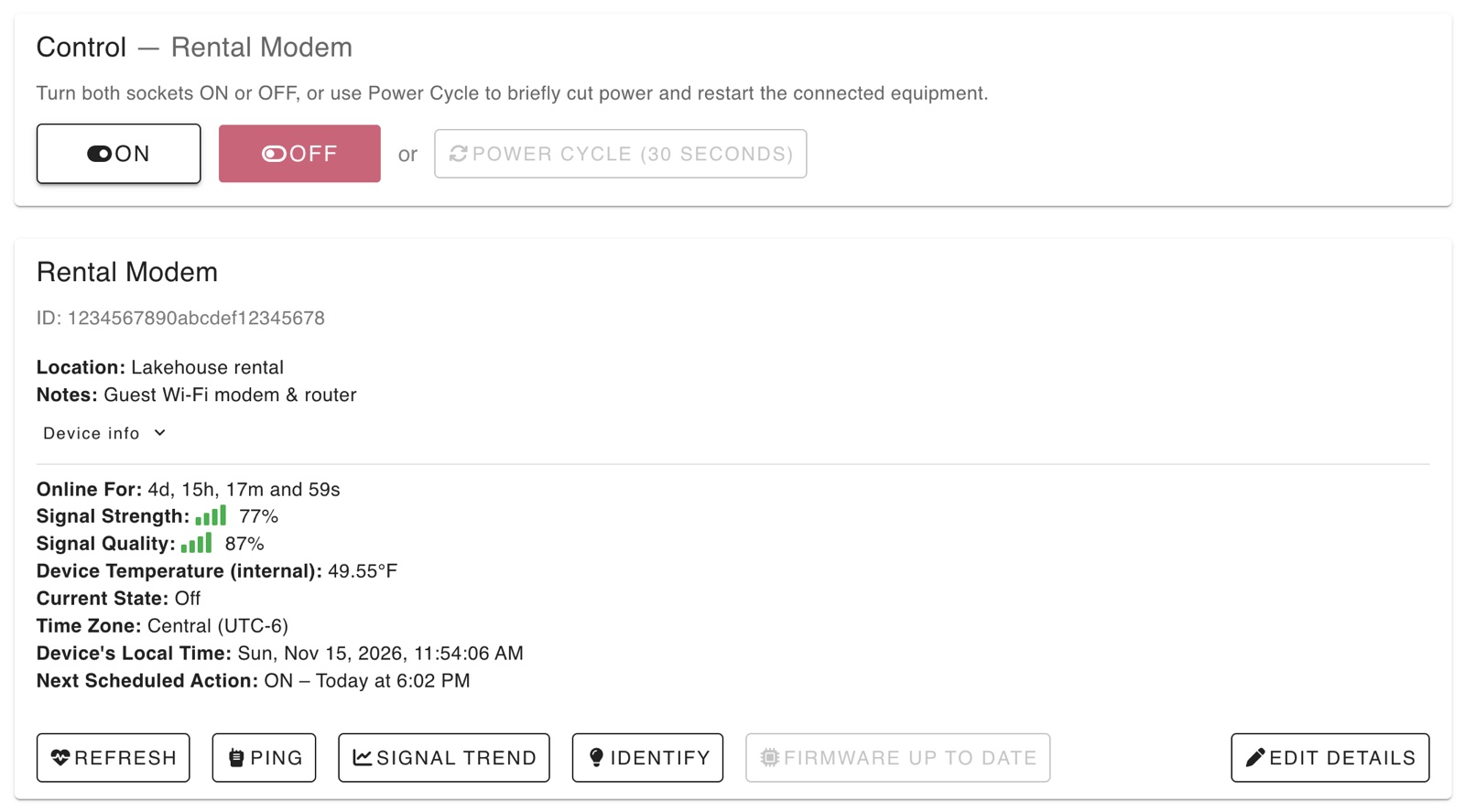
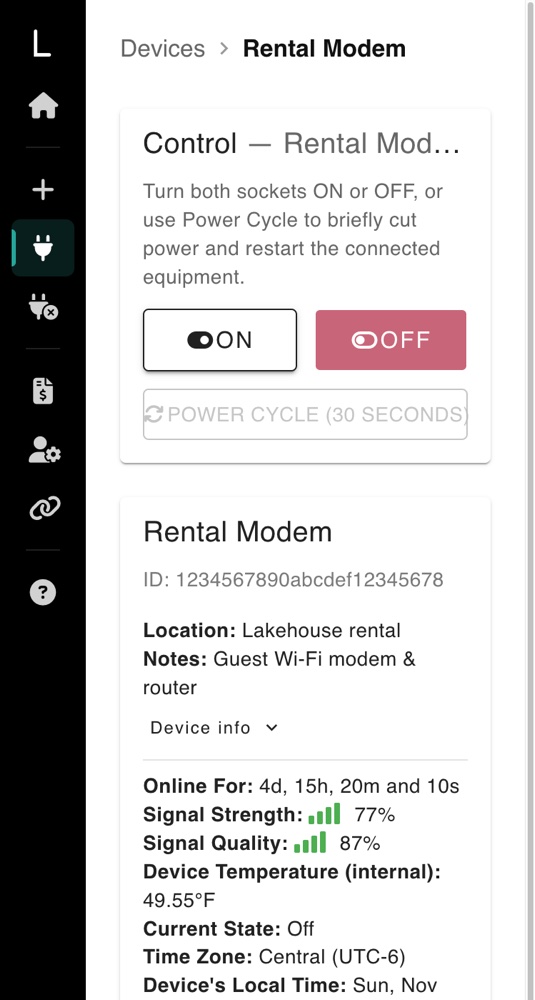
- ON and OFF switch both sockets at once.
- Power Cycle (30 seconds) turns both sockets off for 30 seconds, then back on. It's the safest way to restart a modem, router or Starlink, because it always turns the power back on. You'll be asked to confirm, and the next power cycle can start 60 seconds after one finishes.
- Commands go over cellular, so the button can take a few seconds to confirm.
5Status, signal and tools
- Online For, Current State and the internal temperature of the outlet.
- Signal Strength and Signal Quality. Both should stay above 20% for a reliable connection. If they're low, try a spot away from metal cabinets and basements.
- Device's Local Time and Time Zone, which schedules use.
- Device info shows the IMEI, serial number and firmware version.
| Button | What it does |
|---|---|
| Refresh | Asks the outlet for its latest status. |
| Ping | Checks whether the outlet is reachable right now. |
| Signal Trend | Shows signal strength and quality over the last 30 days. |
| Identify | Flashes the outlet's light, so you can tell which one it is. |
| Edit Details | Changes the name, location and notes. |
If the outlet is offline: the page shows Device offline or Device not responding. Check that it's plugged in and the light is breathing cyan, then choose Try Again. Status can take up to 20 minutes to update after the outlet loses power or signal. Controls come back when it reconnects.
6Schedules (rules)
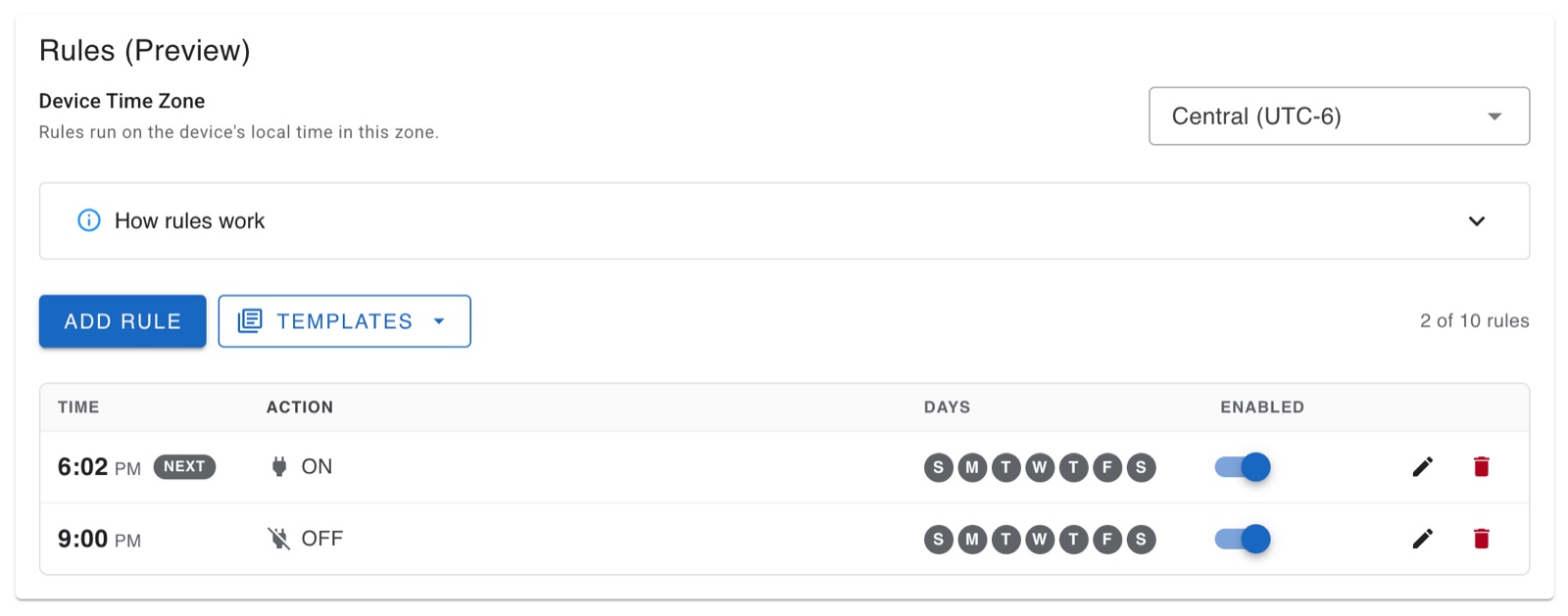
- Each outlet holds up to 10 rules. A rule has days, a time and an action: ON, OFF or Power Cycle.
- Choose Add Rule, or start from a template: Nightly reboot (3:00 AM daily), Weekly reboot (Sundays 3:00 AM), Business hours (on 8 AM, off 6 PM, Monday–Friday) or Off overnight.
- Use the switch to pause a rule without deleting it, or the pencil and trash icons to edit or remove it.
- Set the time zone above the rules list so they run at your local time.
Rules are stored on the outlet, so they keep running if the cellular signal drops. The outlet sets its clock when it connects and re-checks it every 24 hours. If it powers up without a cellular connection, its clock isn't set and rules won't run until it reconnects. Rules are a preview feature; for instant control with confirmation, use the buttons or the Cloud API.
7After a power outage
Under On Power Restore, choose what the outlet does when electricity comes back:
- Turn ON automatically. Best for modems, routers and cameras that should come back on their own.
- Stay OFF. The outlet stays off until you turn it on from the portal, the API or a rule.
8Firmware updates
When an update is available, the device page shows an Update to v… button with a link to what's new.
- Updates take a few seconds to several minutes, depending on signal.
- Both sockets turn OFF during the update and the light blinks magenta. Keep the outlet plugged into the wall until it finishes.
- When it's done, the light breathes cyan and the sockets follow your On Power Restore setting.
9Deactivate, reactivate or delete
At the bottom of the device page, Manage this outlet has two options. Each one explains exactly what will happen before you confirm.
- Deactivate outlet stops monthly billing and moves the outlet to Inactive Devices. A final invoice for the current month is issued. Unplug the outlet afterwards.
- Reactivate it anytime from Inactive Devices. It can take up to 24 hours, and billing resumes.
- Delete outlet permanently removes it and its history from your account. This can't be undone, so deactivate instead if you might use it again.
10Billing
The Billing section shows your payment method and upcoming charges. Choose Manage Billing & Invoices to update your card or download past invoices. Invoices are emailed to you, and you can add one more email address to receive copies. Full details are in the Terms of Service.
11Cloud API
- Open Cloud API to generate your API token. The page has ready-to-copy examples for controlling an outlet and reading its status.
- The token works for every outlet on your account, so keep it private. If it may have been shared, generate a new one; the old token stops working immediately.
- Connect your outlets to Home Assistant, Zapier, n8n or an AI agent.
12Account and security
- In Account Settings you can change your name and password. Changing your password asks for a verification code.
- Turn on two-step sign-in. Each sign-in will also need a code texted to your phone. We recommend it.
13Getting help
- Support in the menu has searchable answers to common questions and the Quick Start & Safety Guide.
- Send Feedback in the menu goes straight to our team.
- Email support@logmor.com. We answer Monday–Friday, 9 AM–5 PM Central.